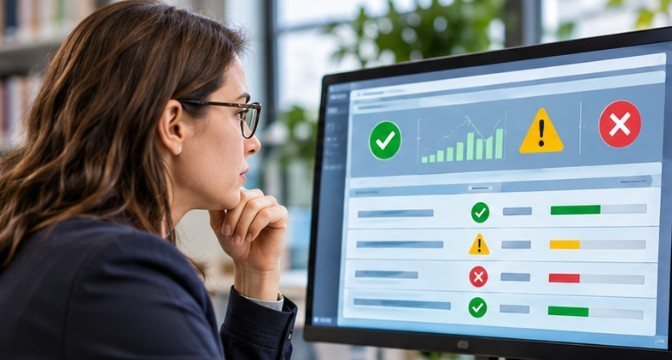

A student’s grades can appear perfectly in Canvas while remaining completely absent from PowerSchool. The problem often isn’t missing information. It’s a broken connection between two systems that interpret the same student records differently.
Understanding how to fix SIS LMS sync errors starts with identifying where information stops moving. Incorrect course identifiers, incompatible grading categories, outdated enrollments, and failed authentication can interrupt synchronization.
Fortunately, most problems can be isolated without rebuilding an entire integration. The key is to investigate systematically, correct the underlying mismatch, and verify that the information reaches its intended destination.
Start With a Simple Sync Error Diagnosis
Before changing configuration settings, determine whether the problem affects one student, one assignment, or an entire school.
The School Data Leadership Association’s troubleshooting guidance recommends checking individual assignments and reviewing error reports before attempting large-scale transfers.
Identify the Scope of the Failure
Use the affected records to narrow your investigation.
- One missing student: Check student identifiers, enrollment status, and account matching.
- One missing assignment: Examine grading categories, assignment settings, and required fields.
- One affected course: Investigate section mappings, course identifiers, and academic terms.
- Multiple affected courses: Review integration credentials, scheduled jobs, API permissions, and vendor availability.
Record the most recent successful synchronization, exact error message, affected course identifiers, and time of failure.
This information makes it easier to distinguish a configuration issue from a temporary processing delay.
How to Fix SIS LMS Sync Errors Step by Step
1. Correct Gradebook Category Mismatches
Grade category mismatches are a common reason assignments fail to transfer.
Suppose an LMS uses the category “Homework,” but the SIS expects “Daily Work.” Without an appropriate category association, the integration may reject the assignment.
In Canvas, institutions with supported integrations can open Assignments, access the options menu, and select Sync SIS Categories.
Teachers can then associate their assignment groups with the corresponding SIS grading categories.
Also inspect category weights. If a course uses weighted grading, confirm that percentages reflect the school’s official policy and total 100% where applicable.
Be careful when importing category weights: changing LMS weights manually can create discrepancies even when the transfer itself succeeds.
2. Inspect Assignment Settings and Required Information
An assignment may be visible to students but excluded from the official gradebook. Open the assignment settings and confirm that Sync to SIS or an equivalent export option is enabled.
Next, verify the assignment title, point value, grading category, due date, and academic term.
Some integrations impose restrictions on assignment names or require due dates.
For institutions using Google Classroom, administrators should also review the platform-specific requirements for connecting class information, assignments, and student records with their SIS; see this guide to integrating Google Classroom with an SIS.
Requirements differ by platform and district configuration, so avoid assuming that every SIS uses the same character limits.
Also confirm that the assignment is graded and that scores have been entered.
A practical approach is to correct one failing assignment, synchronize it, and verify the result before processing others.
3. Resolve Missing Student Records and Enrollment Conflicts
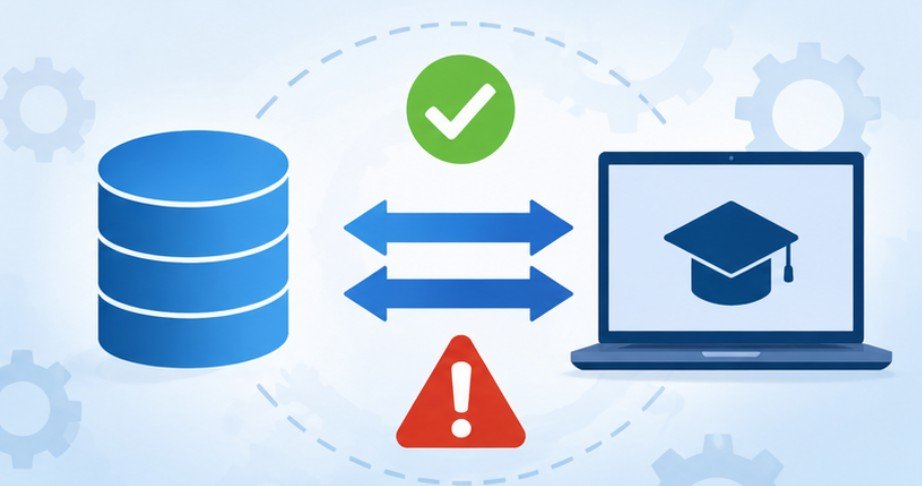
Sometimes the integration works for most students but consistently excludes a few.
Start by comparing student identifiers across both platforms. Email addresses can help match accounts, but institutional student IDs are generally more reliable when configured as the authoritative identifier.
Check for duplicate profiles, missing primary email addresses, inactive enrollments, incorrect course sections, and recent transfers.
Maintaining consistent student information across connected platforms is equally important during the admissions process, where applicant details must move accurately between systems; learn how to integrate an admissions CRM with a student information system.
In systems such as Watermark Student Success & Engagement, authorized administrators may use person overrides to correct identity or email mismatches.
For a recently transferred student, verify that the original enrollment was properly updated and that the new section exists in both systems.
Avoid creating another student account simply to resolve a missing match. Duplicate identities may introduce additional synchronization problems.
4. Examine Grade Formats and Calculation Differences
Not every failed transfer results from missing data.
A grade may reach the receiving system but be rejected because its format or grading scheme is incompatible.
For example, an LMS could submit a letter grade when the SIS expects Pass/Fail.
Johns Hopkins University’s SIS grade import guidance identifies invalid grading schemes, absent final grades, and differences between visible totals and calculated final grades as potential problems.
Administrators should compare exported gradebook values with the destination system’s expected formats.
Check how ungraded assignments, hidden coursework, grading scales, and missing submissions affect final calculations.
This is especially important during semester-end reporting, when an apparently successful synchronization could still produce an incorrect official grade.
When to Retry, Manually Sync, or Remaster Grades

Synchronization frequency varies between integrations. Some jobs run regularly throughout the day, while others operate overnight. Before restarting anything, check the integration schedule and processing history.
If a routine enrollment update has not appeared, confirm whether the next scheduled job has completed. Waiting up to 24 hours may be reasonable for nightly imports, but it should not become a universal troubleshooting rule.
Run a Controlled Manual Synchronization
Where supported, authorized administrators can trigger a manual roster import or grade sync.
First, correct the original error. Then process a limited number of records and examine the destination system.
For Canvas grade passback, teachers may use the Grade Sync interface to review synchronization history and submit eligible assignments.
Use Grade Remastering Carefully
Some Canvas integrations provide a Remaster Grade Passback option under Grade Sync utilities.
This operation can resend previously synchronized grades and eligible assignments, making it useful when individual scores remain outdated.
However, remastering behavior varies by SIS integration. Some implementations resend all enabled assignments, while others offer additional selection controls.
Confirm the affected course, sections, and records before proceeding. A remaster can overwrite destination grades depending on the integration’s rules.
Prevent Recurring Synchronization Problems
Fixing individual errors is necessary, but preventing their return requires better data governance.
In its guide to institutional interoperability, EDUCAUSE emphasizes consistent data definitions, clear system ownership, and coordinated management of connected technologies.
Schools can apply those principles by establishing authoritative student identifiers, documenting category mappings, and assigning responsibility for integration changes.
Establishing a reliable SIS and LMS integration also requires consistent data mapping, clearly defined system responsibilities, and regular checks to ensure information moves accurately between platforms.
Automated monitoring should flag failed jobs, rejected records, expired credentials, and unusual changes in enrollment counts.
For example, administrators could investigate when a scheduled import reports 40 fewer active enrollments than expected rather than automatically accepting the new roster.
Protect Student Data During Troubleshooting
Synchronization troubleshooting can expose sensitive educational records.
The US Department of Education’s student data security guidance highlights the importance of safeguarding information within educational systems.
Use administrator-approved diagnostic tools, restrict log access, and avoid transmitting student records through unsecured email or public support forums.
Under FERPA, educational institutions must also consider applicable restrictions when sharing personally identifiable student information with outside technology providers.
A Practical Verification Test Before Closing the Issue

A successful job notification is not sufficient proof that every record arrived correctly. Choose one authorized test record or a small, approved sample representing the original problem.
Compare the source and destination systems for student ID, course section, assignment, grading period, and score.
Then verify three outcomes: the transfer completed, the correct record was updated, and no unrelated information was changed.
For recurring issues, repeat the verification after the next scheduled synchronization.
Document the root cause and resolution so teachers and administrators can recognize similar errors without repeating the entire investigation.
Frequently Asked Questions
1. Why are SIS grades not updating from Canvas?
Common causes include disabled assignment synchronization, unmatched grading categories, incorrect enrollment identifiers, and pending transfer jobs. Review the Canvas Grade Sync history to identify the specific failure.
2. Can I manually synchronize SIS and LMS records?
Many platforms support administrator-controlled manual imports or grade transfers. Available options depend on your integration and permissions. Correct configuration problems before initiating another synchronization.
3. How long does SIS LMS synchronization take?
Processing times vary by platform and institution. Some integrations update frequently, while others operate overnight. Check the configured schedule rather than assuming every connection updates instantly.
4. What is the safest way to fix SIS LMS sync errors?
Identify the failed record, inspect its mapping and settings, correct the cause, and test a limited synchronization. Verify destination records before retrying a full transfer.
The Real Fix Is Better Data Consistency
A missing grade or student record may look like a minor software problem, but it can affect academic reporting, classroom access, and administrative decisions.
The most reliable solution is rarely clicking the synchronization button repeatedly. It involves understanding which system owns each record, checking the connection between matching fields, and confirming that transferred information remains accurate.
I recommend treating every synchronization failure as an opportunity to improve integration monitoring and documentation. When schools establish reliable identifiers, consistent grading rules, and controlled recovery procedures, technical disruptions become easier to diagnose and less likely to interrupt learning.