

A single assignment can create twice the work for teachers when grades must be entered separately into Google Classroom and a school’s student information system.
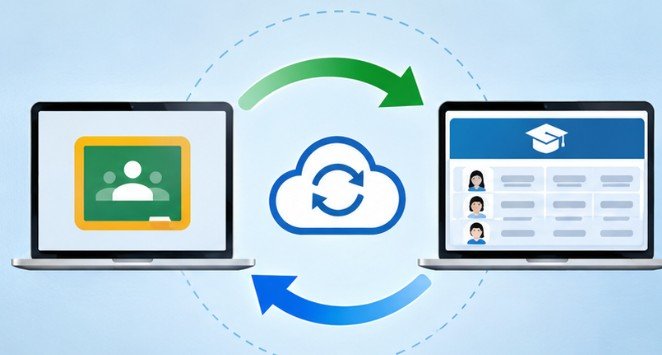
Learning how to integrate Google Classroom with SIS can eliminate much of that duplication by connecting classroom activities, student enrollment records, and gradebooks through a coordinated data exchange.
For American school districts, the most reliable approach typically involves Google’s supported OneRoster integrations, appropriate licensing, and carefully configured student records.
However, connecting two platforms is only the beginning. Schools must also address grade accuracy, synchronization errors, access permissions, and student privacy before relying on automate student onboarding in universities.
Check These Requirements Before Connecting
Successful implementation depends on software compatibility, administrative permissions, and correct licensing.
Google Workspace Licensing
Google requires teachers using its SIS integration features to have either Google Workspace for Education Plus or the Teaching and Learning Upgrade. Since July 9, 2024, these licenses have also been required for the supported grade-export feature.
Schools should confirm license assignments before attempting configuration, rather than assuming every Google Workspace for Education account includes these capabilities.
Supported Student Information Systems
Google’s documented integration partners include Infinite Campus, PowerSchool SIS, Skyward SMS 2.0, Skyward Qmlativ, Follett Aspen, STLink, Blackbaud, and Wazzle Gradebook.
Compatibility can depend on specific SIS editions and additional licenses.
For example, Infinite Campus requires its Campus Learning license, while Skyward Qmlativ requires OneRoster API licensing. Google recommends PowerSchool SIS version 24.5.1.0 or later for the best experience. Administrators should verify their provider’s latest requirements before proceeding.
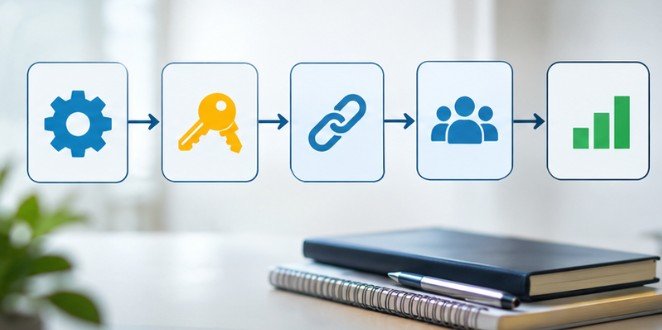
How to Integrate Google Classroom With SIS Step by Step
The setup process usually begins inside the SIS and finishes with authorization in Google Classroom.
Although individual menus differ between vendors, the overall sequence remains similar.
Step 1: Prepare Your Student Records
Before activating any connector, review the student and teacher records stored in your SIS.
Confirm that course sections, academic terms, teacher assignments, and student email addresses are accurate.
A mismatch between school-managed Google accounts and SIS records can prevent students from appearing correctly.
Schools should also decide which platform owns each record type. Generally, the SIS remains authoritative for enrollment information and official academic records.
Step 2: Generate SIS API Credentials
Sign in to your SIS with the appropriate administrative permissions.
Locate its integration settings, digital learning applications, or OneRoster configuration area.
Depending on the provider, administrators may need to register Google Classroom as an authorized application.
The SIS typically supplies a host URL, access key, and secret code. Some integrations describe these credentials as a client ID and client secret.
Store the credentials securely and avoid sharing them through ordinary email or publicly accessible documents.
Step 3: Authorize the Connection in Google Classroom
Open classroom.google.com/admin using an authorized Google Workspace for Education administrator account.
Select the supported SIS from the available provider menu and choose the connection option.
Enter the credentials obtained from your SIS, including the host URL and authentication keys.
Review the option for enabling support with your SIS provider. This may permit Google to share the school’s domain name for troubleshooting.
Complete the authorization process and confirm that the connection succeeds.
Step 4: Import and Link Classroom Sections
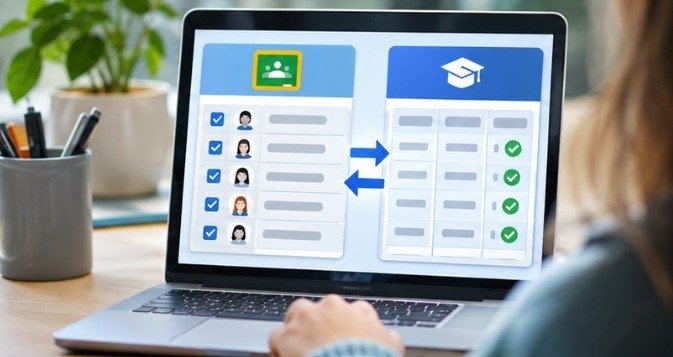
After administrators configure the connection, eligible teachers can import supported SIS classes into Google Classroom.
Teachers may create a new Classroom course using an available SIS class or link an existing Classroom class to the corresponding SIS section.
Some SIS platforms also provide gradebook-based linking workflows.
Verify student membership, teacher ownership, course names, and grading periods before using the imported class.
This review is particularly important for schools managing semester changes or multiple sections of the same subject.
Step 5: Export Grades and Verify Results
Once the course is linked, teachers can export supported assignment grades from Google Classroom to the SIS.
Google’s integration documentation specifies that returned grades and submissions marked missing or excused can be exported. Draft grades are not exported.
Importantly, deleting an assignment from Classroom does not automatically delete its corresponding SIS gradebook entry.
Administrators should test grade categories, maximum point values, grading periods, and assignment statuses before wider deployment.
Native Integration Versus Middleware Connectors
Not every district uses a directly supported SIS. Schools may instead evaluate middleware services such as Clever or ClassLink for rostering, identity management, or application provisioning.
These services can simplify access across educational applications, but that does not automatically mean they provide Google’s native SIS grade-export functionality.
Another possibility is developing a custom connection through the Google Classroom API, particularly when the SIS lacks supported OneRoster capabilities.
The 1EdTech interoperability framework helps technology teams evaluate whether their systems support standardized roster and gradebook exchanges.
For most schools with a supported SIS, native integration is the practical starting point. Custom development generally requires more technical maintenance.
Test the Connection Before Districtwide Deployment
A successful authorization message does not guarantee accurate academic records. Begin with a small pilot involving one teacher, one class, and several test records.
Check whether students appear correctly, whether an enrollment change is reflected, and whether a returned assignment grade reaches the correct student and grading period.
Next, test a missing assignment, an excused submission, and a changed score.
Compare the results in both systems rather than assuming successful synchronization means every field matches.
A useful performance measure is the percentage of tested grade records transferred correctly. For example, 48 accurate transfers out of 50 produce a 96% success rate. Investigate the two failures before expanding the integration.
Common Synchronization Problems and Their Fixes
Students or Teachers Are Missing
Check whether Google account email addresses match SIS records. Confirm that the correct academic section is selected and the primary teacher’s account is properly associated with the SIS course.
Grade Export Fails
Review license assignments, SIS availability, network connectivity, and API permissions. An unreachable-SIS message can indicate a server or network problem rather than a teacher configuration issue.
Duplicate or Incorrect Grades Appear
Check for previously exported assignments, duplicate section links, and grading-period mismatches.
Google warns that disconnecting and reconnecting an SIS can result in duplicate future grade exports. Resolve these issues before attempting repeated synchronization.
Protect Student Information During Integration
Academic technology connections involve sensitive education records, making privacy controls essential.
The U.S. Department of Education’s student privacy guidance explains that educational technology providers receiving protected records under FERPA’s school-official exception must satisfy specific requirements, including institutional control and restrictions on unauthorized data use.
Schools should limit connector permissions, review vendor agreements, and restrict administrative credentials.
The department’s data security resources also emphasize protecting educational records from cyber threats. Privacy reviews should happen before activation, not after student data begins moving between platforms.
Frequently Asked Questions
1. Can Google Classroom automatically sync grades with an SIS?
Yes. Supported integrations allow teachers to export eligible grades to an SIS. The available synchronization process depends on the provider, licensing, and configuration.
2. Is OneRoster required for Google Classroom integration?
OneRoster supports Google’s native SIS integrations. Schools using unsupported systems may explore custom Classroom API solutions or compatible third-party services.
3. Can Clever or ClassLink replace native SIS integration?
Not necessarily. They support educational interoperability and provisioning, but schools must separately verify whether their chosen configuration supports the required gradebook functions.
4. Why are students missing after synchronization?
Common causes include mismatched email addresses, incorrect course associations, enrollment discrepancies, or incomplete SIS configuration.
Making Classroom Integration Work Long-Term
The real value of connecting Google Classroom with an SIS is not simply moving information between applications. It is making school records more dependable while reducing unnecessary administrative effort.
Districts should begin by validating system compatibility, preparing accurate enrollment data, and testing grade transfers with a small group of teachers.
Once the connection works reliably, routine monitoring and clear ownership of student records become essential.
A well-managed integration gives educators more time for teaching while helping administrators maintain consistent academic information.
The goal is straightforward: teachers should enter information where it belongs, without repeatedly entering it somewhere else.


2 thoughts on “How to Integrate Google Classroom With SIS: A Smarter Way to Manage Classes and Grades”