A student transfers classes on Monday, but their online assignments still appear in the previous teacher’s course on Wednesday. The problem may have nothing to do with the learning platform itself. It could be a failed connection between two essential school systems.
Understanding how to integrate SIS with LMS helps schools prevent these disruptions, automate enrollment updates, and maintain accurate academic records.
A successful integration connects the Student Information System (SIS), which manages official student records, with the Learning Management System (LMS), which supports teaching and coursework.
The challenge isn’t simply transferring information. It’s ensuring the right information reaches the right destination securely, accurately, and consistently.
Start by Identifying Which System Controls Each Record
Before connecting platforms, administrators must establish data ownership. The SIS generally serves as the authoritative source for student identities, enrollment status, academic terms, and course sections.
The LMS typically controls assignment submissions, classroom discussions, learning activities, and instructional gradebook entries.
However, grade information sometimes needs to move back into the SIS for official reporting.
One-Way Versus Two-Way Synchronization
One-way synchronization transfers information from the SIS into the LMS.
For example, enrolling a student in a mathematics course automatically adds that student to the corresponding online classroom.
Two-way synchronization supports selected information moving in both directions.
Enrollment records might flow from the SIS into the LMS, while approved assignment scores return to the SIS gradebook.
Two-way connections require additional safeguards to prevent incorrect grades, overwritten records, or conflicting updates.
Schools should document which platform controls each field before enabling either approach.
Choose the Right SIS-to-LMS Integration Technology
Several integration methods are available, but they offer different levels of flexibility, automation, and technical complexity.
OneRoster for Standardized Data Exchange
OneRoster, developed by 1EdTech, provides a standardized framework for exchanging education information.
Its version 1.2 supports three major services: rostering, gradebook exchange, and resource allocation.
Schools can exchange information through REST APIs or structured CSV files.
OneRoster is particularly useful when districts operate platforms from different vendors.
However, support for OneRoster does not automatically guarantee that every vendor supports bidirectional grade synchronization. Schools must verify individual capabilities.
LTI for Connecting Learning Applications
Learning Tools Interoperability (LTI) helps learning platforms securely connect with external educational tools.
LTI 1.3 uses modern authentication mechanisms to support secure launches and information sharing.
For instance, students can open an integrated assessment application directly from their LMS. LTI Advantage also supports selected roster and grading services.
Importantly, LTI isn’t a direct replacement for SIS rostering. It primarily addresses connections between learning platforms and external instructional applications.
Ed-Fi for Broader Educational Data Integration
The Ed-Fi Data Standard provides a common structure for exchanging K–12 educational information.
It can support connections involving attendance, assessment results, enrollment, academic records, and other district systems.
Ed-Fi becomes particularly valuable when schools need consistent information across multiple applications rather than a single SIS-to-LMS connection.
APIs Versus Scheduled File Transfers
REST APIs allow applications to exchange data programmatically and may support frequent updates.
Webhooks can notify connected services when supported events occur, although not every platform provides them.
Alternatively, scheduled CSV exports through secure file transfer protocols can support older systems.
Batch transfers are often simpler to operate but may leave records outdated until the next scheduled synchronization.
How to Integrate SIS With LMS: A Practical Implementation Process
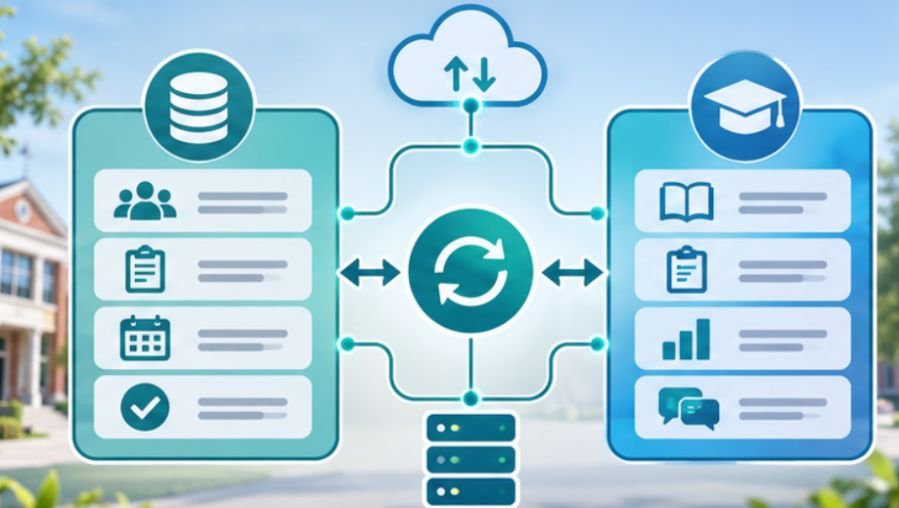
A reliable implementation follows a controlled sequence instead of connecting every system simultaneously.
Step 1: Audit Both Platforms
Identify the SIS and LMS versions, supported integration standards, available APIs, and vendor requirements.
Review whether your district uses Canvas, Schoology, Moodle, Blackboard, Google Classroom, or another learning environment.
Confirm that both platforms support the intended workflows, particularly grade passback and enrollment changes.
For institutions using Canvas, reviewing a practical guide to integrating Canvas LMS with an SIS can provide additional context on platform-specific integration considerations.
Step 2: Build a Data Mapping Document
Create a field-level mapping that connects corresponding information between platforms.
For example, the SIS student identifier must consistently match the correct LMS user account.
When connecting Google Classroom to an SIS, administrators should also understand how student identities, class information, and enrollment details are aligned between the two platforms; this Google Classroom and SIS integration guide offers a platform-specific reference.
Include student IDs, teacher IDs, course codes, section identifiers, academic terms, and enrollment statuses.
The federal Common Education Data Standards initiative provides useful guidance for defining and aligning educational data elements.
Avoid using student names as primary matching identifiers because names can change or appear more than once.
Step 3: Establish Secure Authentication
Configure the appropriate authentication method for your architecture.
Institutional single sign-on may use SAML or OpenID Connect, while API integrations frequently use OAuth 2.0 or vendor-specific credentials.
Google Workspace, Microsoft Entra ID, and Okta are common identity-management options.
Use encrypted connections, restricted permissions, protected credentials, and appropriate access controls.
Step 4: Conduct a Controlled Pilot
Select a limited group of test courses or a small school department.
Import sample records and verify that teachers, students, and class sections appear correctly.
Then test enrollment additions, withdrawals, course transfers, and grade updates.
Check whether repeated synchronization creates duplicate records or changes existing information unexpectedly.
Step 5: Launch and Monitor Synchronization
Once testing succeeds, activate the integration according to an approved deployment schedule.
Monitor synchronization logs, failed imports, rejected records, and authentication errors.
Schools can also use automated communication workflows to keep parents informed about important enrollment changes, student updates, and school-related notifications; explore these ways to automate school parent notifications.
Assign responsibility for resolving issues and establish a rollback procedure before deploying broadly.
Protect Student Information Throughout the Integration
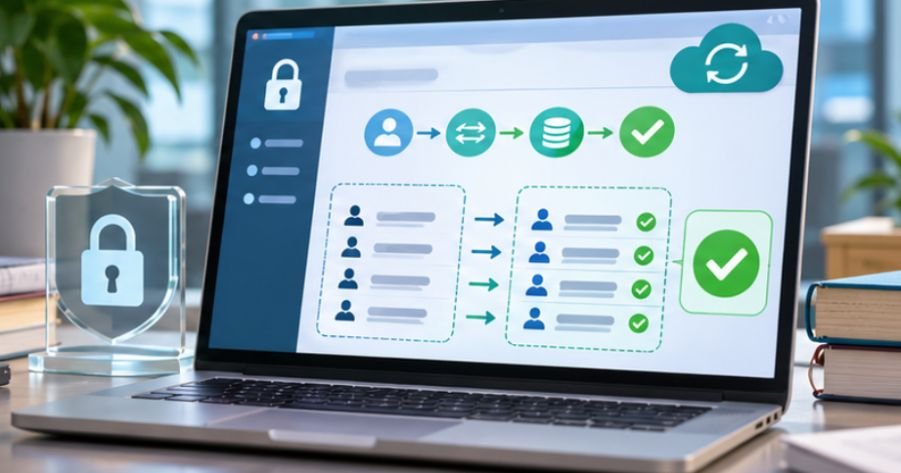
Student information requires careful handling because educational records may contain personally identifiable information.
The Family Educational Rights and Privacy Act (FERPA) governs access to and disclosure of protected education records.
According to the U.S. Department of Education’s student privacy guidance, certain disclosures to education technology providers may qualify under the school official exception when specific requirements are satisfied.
These include appropriate institutional control over information and restrictions against unauthorized disclosure.
Schools should minimize transferred information, review vendor agreements, maintain access logs, and establish data-retention requirements.
Integration alone does not establish FERPA compliance.
Common Integration Problems and How to Resolve Them
Even technically successful integrations can produce operational problems.
Duplicate Student Accounts
Duplicate accounts commonly result from mismatched identifiers or inconsistent provisioning rules.
Use stable SIS identifiers and establish account-matching procedures before importing records.
Missing or Incorrect Course Rosters
Students may appear in the wrong course because of outdated section mappings, inactive enrollment records, or delayed synchronization.
Compare source records against destination rosters and review integration error logs.
Grades Not Appearing in the SIS
Grade transfer may fail because of incompatible grading categories, unsupported passback features, or mismatched assignment identifiers.
Test grading scales, score calculations, and assignment mappings independently.
Unexpected Data Deletions
A withdrawn enrollment should not automatically erase historical coursework.
Configure lifecycle rules that distinguish removing course access from permanently deleting educational records.
How to Measure Integration Reliability

Schools should evaluate more than whether synchronization completed. Useful indicators include roster accuracy, synchronization delay, failed-record counts, duplicate-account rates, and successful grade transfers.
For example, if 990 of 1,000 expected enrollment records synchronize correctly, the reconciliation success rate is 99%. That figure still leaves ten records requiring investigation.
Administrators should establish acceptable thresholds, monitor recurring exceptions, and investigate discrepancies before they affect classroom access.
Frequently Asked Questions
1. What is the easiest way to integrate SIS with LMS?
A vendor-supported OneRoster connection is often the simplest option when both systems support the required services. Otherwise, administrators can evaluate native integrations, APIs, or scheduled file transfers.
2. Can SIS and LMS synchronize grades automatically?
Yes. Compatible platforms can support automated grade transfer, but functionality depends on vendor support, configuration, grading policies, and the selected integration method.
3. How often should student information synchronize?
Enrollment-critical information generally benefits from frequent synchronization. Nightly updates may be sufficient for less urgent administrative data, depending on institutional requirements.
4. Is SIS and LMS integration secure?
It can be secure when schools use encryption, appropriate authentication, restricted data access, monitored connections, and properly reviewed vendor agreements.
Building a More Reliable Connected Learning Environment
A successful integration should make school technology almost invisible to the people using it.
Students should find their correct courses, teachers should trust their class rosters, and administrators should have confidence in official academic records.
Achieving that reliability requires more than compatible software. Schools need clear data ownership, consistent identifiers, secure authentication, controlled testing, and ongoing monitoring.
Start with one manageable integration, confirm that information moves accurately, and expand only when the process proves dependable.
The ultimate measure of success isn’t how much data moves between platforms. It’s how consistently that information supports learning without creating additional work.