

A missed email can cost a law firm more than a potential client. It can delay a consultation, interrupt a case update, or leave important documents buried in someone’s inbox.
Understanding how to connect law firm CRM to email helps attorneys eliminate these communication gaps while keeping client information organized. The process typically involves linking Microsoft Outlook or Gmail to a legal CRM, configuring synchronization settings, and establishing security controls.
However, connecting two applications is only the beginning. The real challenge is ensuring that the right messages reach the right client records without exposing confidential information.
Choose the Right CRM and Email Connection Method
Not every legal CRM handles email synchronization identically. Before selecting an integration, firms should evaluate their existing software and communication requirements.
Native Email Integrations
Native integrations connect applications through built-in functionality. Platforms such as Clio Grow, Lawmatics, HubSpot, and GoHighLevel offer email-related features, although capabilities vary by product, subscription, and configuration.
Common features include contact synchronization, email logging, automated responses, and communication tracking.
Law firms can extend these connected workflows by automating law firm client onboarding, allowing approved intake details, contact information, and client documents to flow into their CRM and practice management systems with less manual data entry.
Native connections are generally easier to maintain because vendors manage much of the underlying integration.
Third-Party Automation Platforms
Middleware tools can connect applications that lack direct integrations. For example, an automation workflow might create a CRM contact when someone submits an intake form or notify a staff member when a consultation email arrives.
These workflows may use application programming interfaces (APIs), webhooks, or integration platforms.
For firms connecting their CRM with external legal applications, understanding how to use webhooks in legal software can help automate event-driven updates, transfer relevant information between systems, and maintain more reliable communication workflows.
However, firms should verify whether third-party services process or retain confidential information before enabling them.
IMAP and POP3 Connections
Some CRM systems support traditional email protocols. IMAP allows compatible applications to access messages stored on an email server, while POP3 generally retrieves messages for local processing.
Neither protocol automatically guarantees complete two-way CRM synchronization.
Modern OAuth-based integrations are usually preferable when supported because they can avoid sharing mailbox passwords directly with the CRM.
How to Connect Law Firm CRM to Email: Step-by-Step Setup
A successful connection begins with deciding which information should move between systems.
Step 1: Check Software Compatibility
Identify the firm’s CRM platform and email provider.
Common combinations include Microsoft 365 with a legal practice management platform or Google Workspace with an intake-focused CRM.
Review the integration documentation to confirm support for:
- Sending and receiving messages
- Contact matching and email logging
- Shared inboxes and calendar synchronization
- Automated follow-ups and attachment handling
Also determine whether the connection requires administrator approval or an upgraded subscription.
Step 2: Select the Synchronization Method
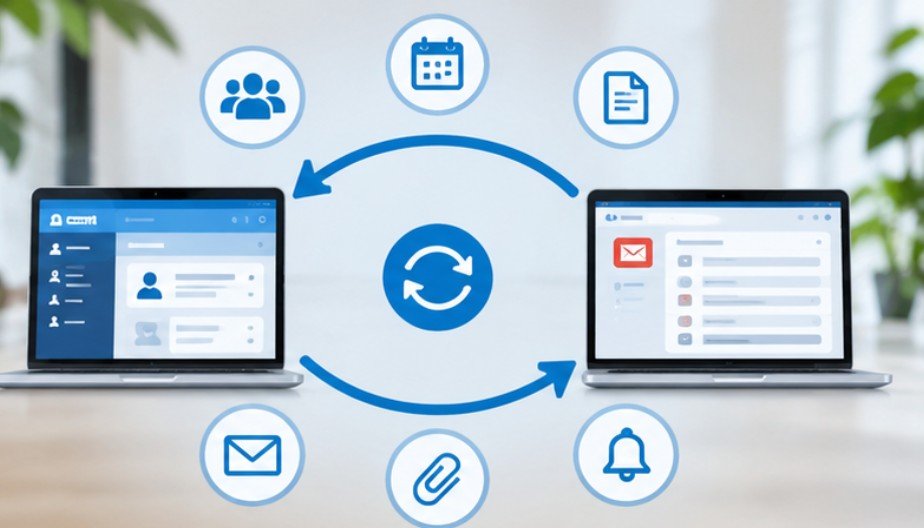
Most systems offer some combination of automatic and selective synchronization.
Two-way synchronization may record incoming and outgoing communications, while manual logging allows attorneys to choose which conversations appear in CRM records.
For firms handling sensitive litigation or privileged communications, selective logging may provide greater control.
Confirm whether the integration associates messages with contacts, matters, or both. These are not necessarily equivalent functions.
Step 3: Authorize the Email Account
Open the CRM dashboard and locate its integrations or email settings.
Select Microsoft Outlook, Microsoft 365, Gmail, or Google Workspace, depending on the supported provider. Choose the connection option and complete the authentication process.
Review the permissions requested before approving access. Some integrations require permission to read messages, send emails, or manage contacts.
The Cybersecurity and Infrastructure Security Agency recommends least-privilege access, meaning applications should receive only the permissions necessary to perform their intended functions
Step 4: Configure Contact and Message Mapping
After authorization, configure how the CRM identifies relevant conversations.
Most platforms use email addresses to associate correspondence with existing contacts. Review how the system handles duplicate contacts, shared addresses, multiple matters, and messages involving several recipients.
A single email address may belong to someone involved in multiple legal matters. Automatic matching alone may therefore create inaccurate records. Where possible, require matter-level confirmation before storing sensitive correspondence.
Step 5: Set Up Signatures and Automated Templates
Create standardized templates for common interactions, including consultation confirmations, intake reminders, document requests, and appointment follow-ups. Include appropriate attorney contact information and firm signatures.
Automation should handle routine administrative communications, not replace professional judgment.
Messages containing individualized legal advice, sensitive allegations, or confidential case details should undergo appropriate review.
Protect Client Confidentiality During Email Synchronization
Email integration creates additional pathways through which sensitive information may be accessed.
The American Bar Association’s Formal Opinion 477R explains that lawyers must take reasonable precautions to prevent unauthorized access to protected client communications. Particularly sensitive circumstances may require stronger safeguards.
American Bar Association
For CRM integrations, this means examining access permissions, vendor security practices, retention settings, and potential disclosure risks.
Use Strong Authentication

Require multifactor authentication for connected email accounts and CRM users.
The National Institute of Standards and Technology provides authentication guidance that supports stronger identity verification and phishing-resistant authentication methods.
Where supported, firms should consider security keys or passkeys alongside role-based access controls.
Authenticate the Firm’s Sending Domain
Law firms sending automated emails should configure three important domain protections:
- SPF identifies authorized email-sending servers.
- DKIM applies cryptographic signatures to outgoing messages.
- DMARC establishes policies for handling messages that fail applicable authentication checks.
The Federal Trade Commission recommends these technologies to reduce email impersonation and spoofing risks.
Domain authentication improves trust but does not guarantee delivery or protect the confidentiality of message contents.
Limit Unnecessary Data Exposure
Avoid automatically importing every mailbox conversation.
Personal correspondence, opposing counsel communications, and unrelated client matters should not become visible to employees without appropriate authorization.
Review vendor agreements, encryption capabilities, audit logs, and data deletion procedures before deployment.
To strengthen these safeguards, firms should understand how to secure law firm software integrations, including encrypted connections, least-privilege access, vendor security assessments, and ongoing monitoring of connected applications.
Test the Connection Before Using Real Client Records
A successful login does not prove that email synchronization works correctly.
Use fictional contacts and internal test accounts to examine the complete workflow.
Send a message from the CRM and confirm its delivery. Reply from the test inbox and verify that the response appears in the appropriate contact record.
Next, change a contact’s information and observe whether synchronization updates the correct fields.
Test duplicate addresses, attachments, permission restrictions, and disconnected accounts.
A useful acceptance standard is that messages must reach their intended recipients, appear in the correct records, and remain inaccessible to unauthorized users.
Common Integration Problems and Practical Fixes
Some integrations appear connected but fail to log messages correctly.
Expired authorization tokens may require account reconnection. Missing messages can result from incorrect contact matching, disabled logging, or synchronization delays.
Other common problems include duplicate records, insufficient permissions, and unsupported shared mailboxes.
If automated messages land in spam folders, review domain authentication, sender reputation, and template content.
Security monitoring is equally important. The FBI’s 2025 Internet Crime Report documents business email compromise as a significant source of reported financial losses, reinforcing the need to verify unusual payment instructions independently. Never assume that a message is trustworthy simply because it appears inside the CRM.
Frequently Asked Questions
1. Can a law firm CRM connect directly to Gmail?
Yes. Many legal CRM platforms support Google Workspace or Gmail integrations. Available features depend on the vendor, subscription, and administrator permissions.
2. Is two-way email synchronization necessary?
Not always. Two-way synchronization improves communication visibility, but selective logging may be more appropriate for firms handling highly confidential or unrelated client conversations.
3. Can Outlook emails automatically appear in client records?
Yes, if the CRM supports Outlook integration and appropriate email logging. Contact matching and matter association must be configured correctly.
4. How can firms prevent duplicate email records?
Use consistent contact identifiers, review synchronization rules, and test duplicate detection before importing historical conversations or enabling automatic email logging.
Better Connection Starts With Better Control
Connecting a law firm’s CRM to email should make communication easier without creating new confidentiality risks.
The most effective approach combines compatible software, carefully selected synchronization settings, secure authentication, and regular testing.
Firms should also examine how messages are matched to client matters and who can access stored correspondence.
Understanding how to connect law firm CRM to email is ultimately about more than transferring messages between applications. It is about building a dependable communication process that supports attorneys, protects clients, and reduces administrative errors. A reliable integration should make important conversations easier to find, not easier to expose.



One thought on “How to Connect Law Firm CRM to Email Without Losing Client Data”