

A student can be officially enrolled in a course yet remain invisible in Canvas. The reason is often a failed connection between the learning platform and the institution’s student records.
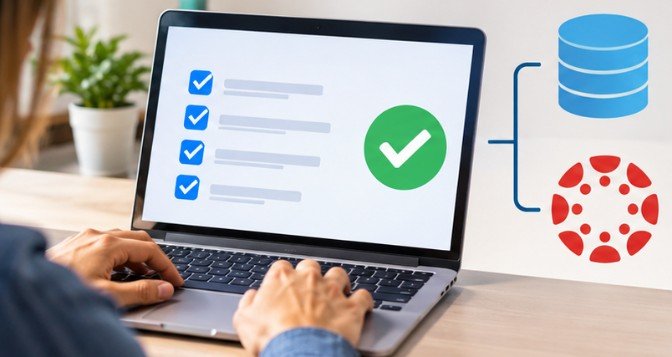
Understanding how to integrate Canvas LMS with SIS helps American schools and universities prevent enrollment discrepancies, reduce administrative work, and maintain accurate academic records.
The process involves connecting Canvas to a Student Information System (SIS) through CSV imports, APIs, or supported integrations. However, establishing a connection is only the beginning. Successful integration requires reliable data mapping, synchronized enrollment records, and carefully configured grade transfers.
Choose the Right Canvas-SIS Integration Method
The most appropriate connection depends on the SIS vendor, technical resources, and required synchronization frequency.
CSV Imports for Straightforward Data Transfers
CSV integration uses structured files containing student records, course information, sections, and enrollments.
Administrators export this information from the SIS and format it according to Canvas requirements. The files can then be uploaded through the account’s SIS Imports interface.
This approach works well for smaller institutions or scheduled administrative updates. However, manual imports require ongoing supervision and may delay enrollment changes.
REST APIs for Automated Synchronization
Canvas provides REST APIs that allow authorized applications to exchange information through secure HTTPS connections.
Developers can automate SIS data imports using the endpoint:
POST /api/v1/accounts/:account_id/sis_imports
This endpoint accepts supported import data and requires appropriate account permissions.
Scheduled integrations can reduce repetitive administrative work, although they require authentication management, error monitoring, and maintenance.
Native Connections and Interoperability Standards
Some SIS providers, including PowerSchool, Focus, and openSIS, support Canvas integrations through vendor-specific workflows.
Institutions should verify which features their SIS supports before implementation.
The nonprofit 1EdTech Consortium’s OneRoster standard provides standardized methods for exchanging roster and gradebook information.
OneRoster supports CSV-based transfers and REST web services, helping institutions avoid unnecessary custom integrations.
However, supporting OneRoster does not guarantee that every SIS and Canvas feature will work together. Compatible versions and implemented services still matter.
How to Integrate Canvas LMS With SIS Step by Step
A reliable setup begins with identifying which platform controls each type of information.

Step 1: Prepare and Validate SIS Records
Before connecting the systems, review student IDs, instructor records, academic terms, course identifiers, and section assignments. Every student and course should have a consistent identifier.
For example, a student identified as STU2045 in the SIS should retain a corresponding SIS identifier in Canvas. Conflicting identifiers can cause duplicate accounts or missing enrollments.
Step 2: Configure Canvas Administrative Access
Sign in using an account with the necessary administrative permissions. Navigate to Admin, select the appropriate account, and open Settings.
Confirm that SIS Imports are enabled. The SIS Imports page is available only when the feature and relevant permissions are configured.
If using API-based integration, create an access token with suitable permissions and store it securely. Avoid embedding credentials directly in scripts or sharing tokens through email.
Step 3: Establish the Data Connection
For CSV imports, prepare Canvas-compatible files such as users.csv, courses.csv, sections.csv, and enrollments.csv.
Upload the appropriate CSV file or ZIP package through SIS Imports.
For automated integration, configure the SIS connector to authenticate with Canvas and submit supported data through the API.
In openSIS, for example, administrators can configure Canvas through Settings and LMS Settings, enter the Canvas URL and access token, and test the connection before enabling synchronization.
Step 4: Test Enrollment Synchronization
Begin with a small test dataset rather than importing an entire district’s records.
Verify that students appear in the correct Canvas courses, instructors receive appropriate permissions, and section assignments match the SIS.
Test enrollment changes as well.
A successful initial import does not prove that withdrawals, transfers, and updated course assignments will synchronize correctly.
Step 5: Enable Scheduled Updates
After validating the connection, establish synchronization intervals appropriate for the institution.
A district with frequent enrollment changes may need multiple updates daily, while another institution may operate effectively with less frequent imports.
Monitor completed jobs, rejected records, and unexpected changes.
Configure Canvas Grade Passback Correctly
Grade passback allows eligible grades recorded in Canvas to reach the SIS without repeated manual entry.
However, the institution must first enable and configure a supported grade synchronization workflow.
Align Assignment Categories
Canvas assignment groups must align with the SIS grading categories.
For example, if the SIS uses Homework, Quizzes, and Exams, administrators should ensure that Canvas assignment groups are appropriately associated with those categories.
A mismatch can prevent assignments from transferring or place them in unintended categories.
Select Assignments for SIS Sync
In Canvas account settings, administrators can configure SIS Integration Settings, including default synchronization preferences and assignment validation requirements.
Teachers can then open an eligible graded assignment, quiz, or discussion and enable Sync to SIS.
Assignment names, due dates, point values, and category associations should meet the integration’s requirements.
Transfer and Verify Grades
Depending on the configured integration, teachers can initiate grade transfers from the Gradebook using the Sync to SIS option.
Some institutions also support scheduled grade synchronization.
Importantly, assignment-level grade passback differs from submitting official final course grades.
The University of North Alabama’s Canvas grade-reporting guidance demonstrates why instructors should review gradebook calculations before transferring final grades to Banner.
Troubleshoot Common Canvas-SIS Synchronization Problems
Even properly configured integrations occasionally encounter errors.

Missing Students or Duplicate Accounts
Check whether SIS identifiers match existing Canvas accounts. Verify enrollment status, course associations, and import processing results.
Avoid creating replacement accounts before determining whether an existing student record can be corrected.
Assignments Not Appearing in the SIS
Confirm that Sync to SIS is enabled and that assignment groups correspond to valid SIS categories. Review required due dates, grading periods, and synchronization history.
Also check whether scores have been entered and whether the integration supports the assignment type.
Gradebook Totals Do Not Match
Differences may result from grading schemes, missing assignments, hidden grades, or institution-specific calculation rules.
Tufts University’s Canvas grade-import instructions illustrate how mismatched grading schemes and combined course sections can interfere with transfers.
The safest response is to compare the gradebooks before attempting another import.
Protect Student Information During Integration
Canvas-SIS integration involves sensitive student records, making privacy controls essential.
The U.S. Department of Education’s FERPA guidance explains that educational technology providers handling protected student information must meet applicable requirements governing access, control, and permitted uses.
Institutions should restrict integration permissions, secure authentication credentials, review vendor agreements, and maintain appropriate audit records.
Administrators should also test changes outside production whenever possible.
An integration that transfers information successfully but exposes unnecessary student data is not a successful implementation.
Frequently Asked Questions
1. Can Canvas integrate with any student information system?
Canvas supports several established SIS integrations. Other platforms may connect through CSV imports, REST APIs, or compatible vendor connectors, depending on their technical capabilities.
2. Can Canvas automatically synchronize student enrollments?
Yes. Supported automated integrations can update student enrollments on configured schedules. The frequency and available features depend on institutional settings and the SIS provider.
3. Why are Canvas grades not syncing to the SIS?
Common causes include incorrect category mappings, missing assignment information, disabled SIS synchronization, and unsupported gradebook configurations. Review synchronization logs to identify the exact problem.
4. Is coding necessary to connect Canvas with an SIS?
Not always. CSV uploads and supported vendor integrations may require little coding. Custom API integrations generally require technical configuration and maintenance.
Building an Integration That Remains Reliable
Knowing how to integrate Canvas LMS with SIS is valuable, but maintaining accurate information across both systems requires continuing attention.
A dependable integration should handle more than initial account creation. It must accommodate enrollment changes, academic term transitions, grading updates, and unexpected synchronization failures.
Schools should establish clear data ownership, monitor integration activity, and periodically compare Canvas records with official SIS information.
Start with a limited test, verify the results, and expand only after confirming that records remain consistent.
The most effective integration is ultimately the one teachers and students rarely notice because their information is already where it belongs.



One thought on “How to Integrate Canvas LMS With SIS Without Sync Errors”