
I’ll admit it—when I first signed up for Paramount Plus, I thought it was going to be the ultimate streaming experience.
I could watch everything from the latest blockbuster hits to nostalgic old-school TV shows, all in one place.
But there was one problem. I had this nagging thought: “Can I record these shows for later?”
Because let’s be real—there are some nights when you just don’t have the time to binge-watch your favorite series.
So, I decided to find out: Can you record on Paramount Plus?
Here’s the truth: while Paramount Plus doesn’t come with a built-in DVR feature, that doesn’t mean you’re out of luck when it comes to recording your favorite content.
I’ve tried a few methods and am here to share what I’ve learned. If you’re looking to save those must-watch moments for later, read on to find out how you can record on Paramount Plus!
Can You Record on Paramount Plus Directly?

Image source- paramountplus.com
Here’s the deal—no, Paramount Plus doesn’t have an official way to record shows like the old-school DVRs or cloud-based recording systems.
It’s a bummer, I know, but there are some workarounds that might just do the trick for you. You see, while the platform doesn’t allow direct recording, you can still capture those binge-worthy shows with the right tools.
But before you get started, it’s important to consider a few things. Paramount Plus’ Terms of Service and copyright laws prohibit commercial use or sharing of recorded content, so keep that in mind.
Recording for personal use (say, for offline viewing) may fall under fair use in some places, but you should always be cautious and aware of the potential legal implications.
What Are the Methods for Recording Paramount Plus?
While Paramount Plus might not make it easy to record shows directly, there are still options out there.
You can use third-party tools or built-in device features. Don’t worry—I’ll guide you through both methods so you can choose what works best for you.
How Can You Record on Windows Computers?
Recording Paramount Plus on a Windows PC isn’t as tricky as it sounds. Here are a few options:
Option 1: Xbox Game Bar
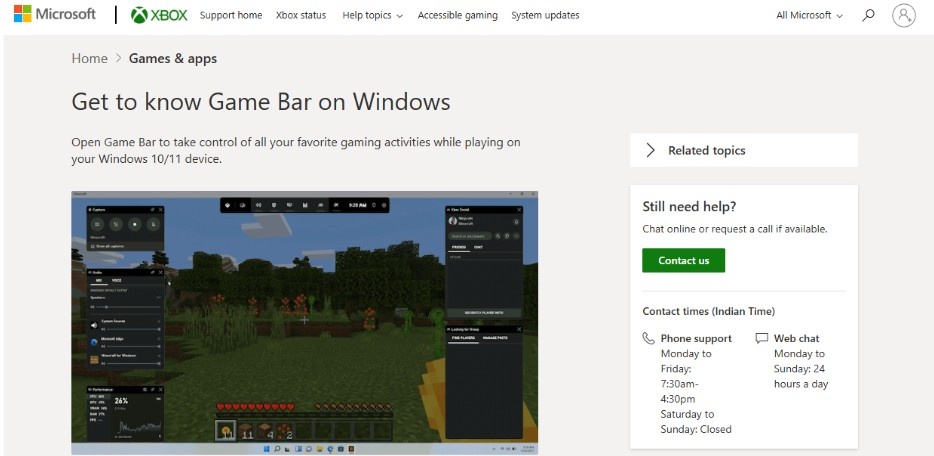
Image source- support.xbox.com
If you’re a Windows 10 or 11 user, you have the Xbox Game Bar right at your fingertips. This tool is built into your system and offers an easy way to record your screen.
- Press the Windows key + G to open the Game Bar.
- Navigate to Paramount Plus in your browser and start playing the show you want to record.
- Hit the red “Record” button in the Capture widget to start recording.
It’s quick, easy, and the perfect solution if you’re looking to grab some content without extra software.
Option 2: Third-Party Screen Recorders
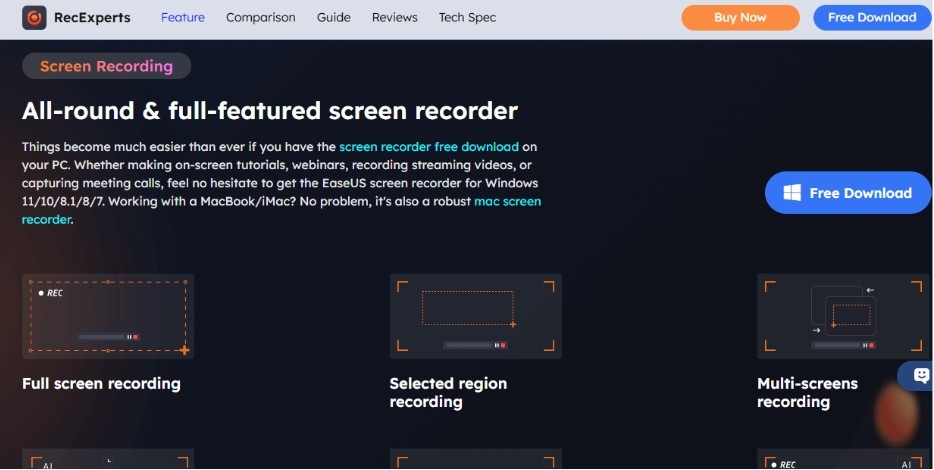
Image source- recorder.easeus.com
If you’re after something more robust, third-party tools like EaseUS RecExperts, FocuSee, OBS Studio, Bandicam, and iTop Screen Recorder are excellent choices.
These tools let you select a recording area (say, the whole screen or just the browser window) and save your video in various formats.
One tip: To avoid those pesky black screens that happen due to DRM protection, disable hardware acceleration in your browser settings (Chrome, Firefox, or Edge) before starting the recording.
How to Record Paramount Plus on Mac?
Mac users, don’t worry! You’ve got options too. Whether you prefer the built-in QuickTime Player or a third-party tool, you can capture your favorite shows in just a few steps.
Option 1: QuickTime Player
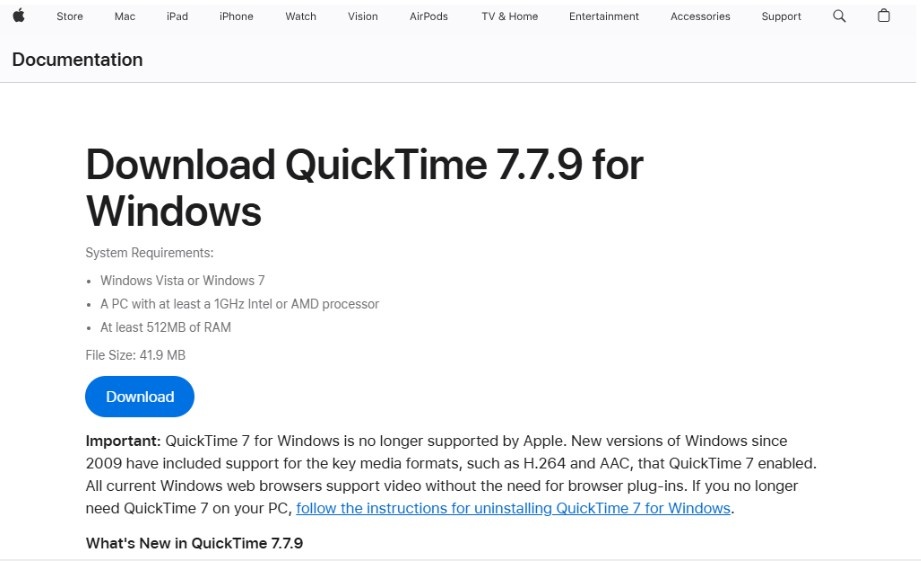
Image source- support.apple.com
QuickTime comes pre-installed on your Mac, so you don’t have to download anything extra. Here’s how to use it:
- Open QuickTime Player and select New Screen Recording from the File menu.
- Choose the area of your screen to record (I recommend capturing the whole screen).
- Hit Record, then open Paramount Plus in your browser and start watching.
- Once you’re done, click the Stop button to finish recording.
One thing to note: QuickTime only records microphone audio by default. If you need system audio (the sound from the show itself), consider using third-party software for internal audio capture.
Option 2: Third-Party Screen Recorders
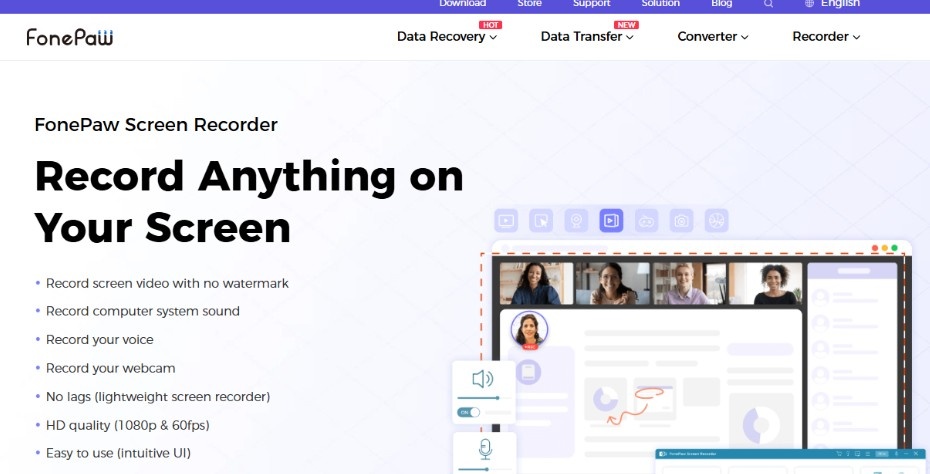
Image source- fonepaw.com
If you want more flexibility, try third-party tools like FonePaw Screen Recorder. These tools can give you more control over the recording quality and audio options.
Can You Record Paramount Plus on Your Mobile Device?
For those of us who love to watch shows on the go, recording on your mobile device might be the most convenient option. Whether you’re using an iPhone, iPad, or Android device, there are simple ways to capture your content.
Built-in Screen Recorders
Most modern smartphones and tablets come with built-in screen recording functionality. Here’s how to record directly on your mobile device:
- iPhone/iPad: Access the screen recorder through the Control Center. Start recording before you open the Paramount Plus app, and stop when you’re done.
- Android: On Android devices, open the Quick Settings and tap the Screen Recorder icon. Start recording before launching Paramount Plus.
Download Feature with the SHOWTIME Plan
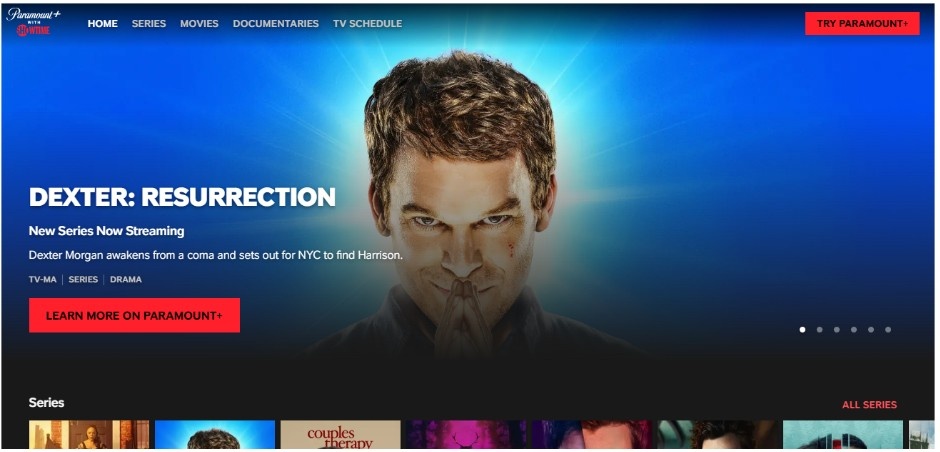
Image source- paramountpluswithshowtime.com
If you have the Paramount+ with SHOWTIME plan, you’re in luck! Paramount Plus allows offline viewing for mobile users, which means you can download select content for later use.
Here’s the catch: You can download up to 25 videos, but they expire after 30 days or 48 hours after you begin playback. Still, it’s a great way to save content for on-the-go viewing.
What Are the Limitations and Important Considerations?
Before you get too excited about recording all your favorite shows, there are a few important things to keep in mind.
- DRM Protection: Paramount Plus uses Digital Rights Management (DRM) to protect its content. This means that recording might result in black screens or low-quality video if you’re using the wrong tools. To avoid this, experiment with different software or adjust browser settings (like disabling hardware acceleration).
- Storage: Recording video takes up a lot of space, especially if you’re aiming for high-quality footage. Make sure your device has enough storage before you begin.
- Copyright Laws: Recording for personal use might be okay in some regions, but it’s crucial to respect Paramount Plus’ terms of service. Commercial use or sharing recorded content is strictly prohibited.
Frequently Asked Questions
1. Can I record Paramount Plus on my computer?
Yes, you can! If you’re using Windows, the Xbox Game Bar or third-party screen recorders can help you record Paramount Plus content. Mac users can use QuickTime Player or third-party screen recording tools.
2. What is DRM protection, and how does it affect my recordings?
DRM (Digital Rights Management) protection is a security measure that restricts the copying or recording of copyrighted content. If you try to record Paramount Plus, DRM might cause issues like black screens or low-quality recordings. Disabling hardware acceleration or using specific software can help you avoid this problem.
3. Can I download Paramount Plus shows for offline viewing?
Yes, if you have the SHOWTIME plan, you can download up to 25 videos on mobile devices for offline viewing. Keep in mind that these downloads expire after 30 days or 48 hours after you start watching.
Conclusion: Your Streaming, Your Rules!
Look, I get it. Sometimes you just need to hit pause on life and watch your favorite show whenever you feel like it.
While Paramount Plus doesn’t offer a built-in DVR, you can still enjoy its content offline with a little creativity and the right tools.
Whether you’re using screen recording software, built-in device features, or even the download option with the SHOWTIME plan, you’ve got plenty of ways to record Paramount Plus shows for later.
So go ahead—record those cliffhangers, download those movies, and enjoy your streaming experience without the fear of missing out. Just remember to keep it legal, and always be mindful of the terms and conditions. Happy streaming!
Pro Tip: If you’re recording from a browser, try using Incognito Mode to reduce potential DRM issues. It’s a quick and easy workaround!